June 27, 2022
I’ve written before about using Notion to host your course and how we manage our Course Ops using Notion. This post will share a behind the scenes look at how we manage our curriculum.
Notion Mastery’s beta program was launched in the fall of 2019 and quickly grew from there. Our curriculum has evolved and expanded a lot in the last three years. This growth happened organically, as we continuously created new content to address the wide variety of use cases our growing student body were interested in, as well as cover the new and changing Notion features being released.
Notion Mastery is made up of over 100 Notion pages and in early 2022 it became very apparent that improving the Notion infrastructure we were using to manage our content was going to be essential. This was made ever more obvious when Notion announced they would be launching the “Better Databases” feature. We needed an efficient way to know which lessons taught about using databases and what assets were used to demonstrate this, so we would know exactly what needed to be updated once the new feature was launched.
Here are the three databases we rely on to manage our course curriculum:
This database contains one entry for every page in our course (currently over 100 pages!). There are a few main views that we use:
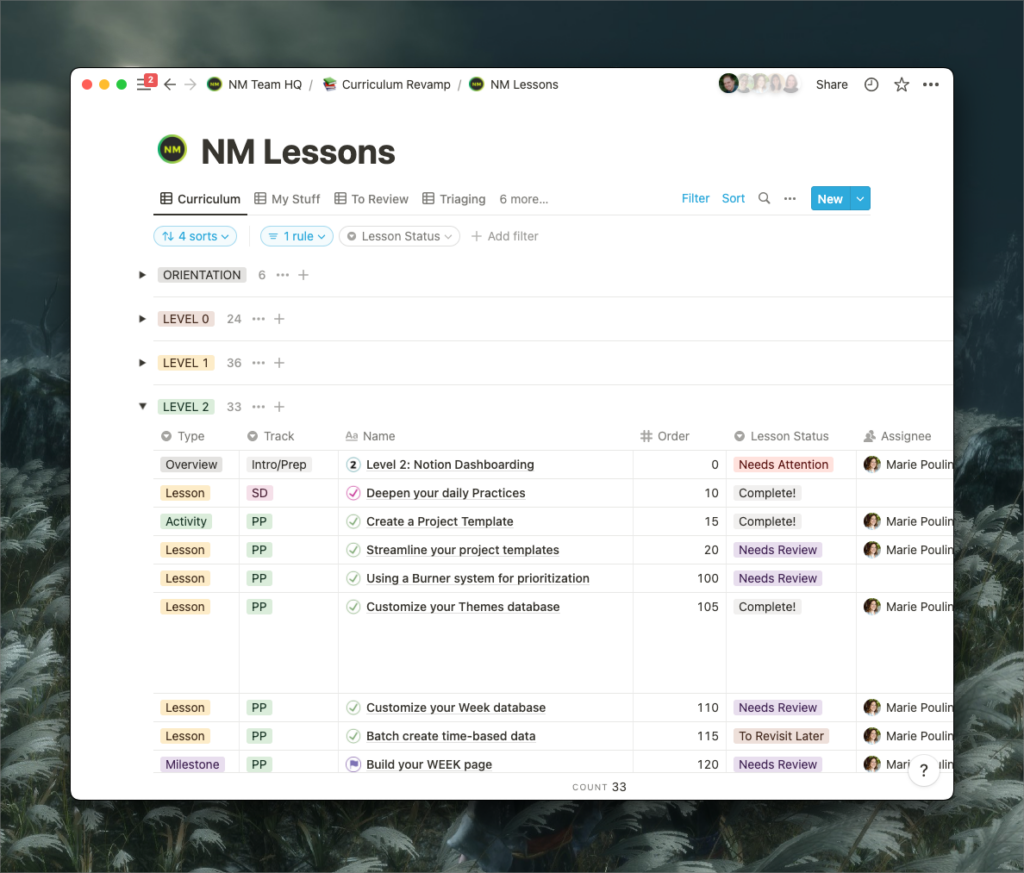
In Notion Mastery there are 4 Levels with 4 Tracks to explore, followed by a series of side quests & rabbit-holes that guide you through more specific and niche use cases for Notion. This table view groups the lessons by Level and is sorted so that the order of lessons matches the order of the lessons in the course. We refer to this view to get a big picture overview of the status of each lesson, who is assigned to write a lesson or review it, and quickly link to the live lesson using an @-mention of the live lesson page.
Curriculum view grouped by “Level”
Grouped by status, this table view is filtered to show only lessons where the person viewing is assigned as creator or editor. It shows any lessons that Need Attention, Needs Review or where the status is Future Lesson. Any of our team members can check out this view to get direction about what their next curriculum related steps are.
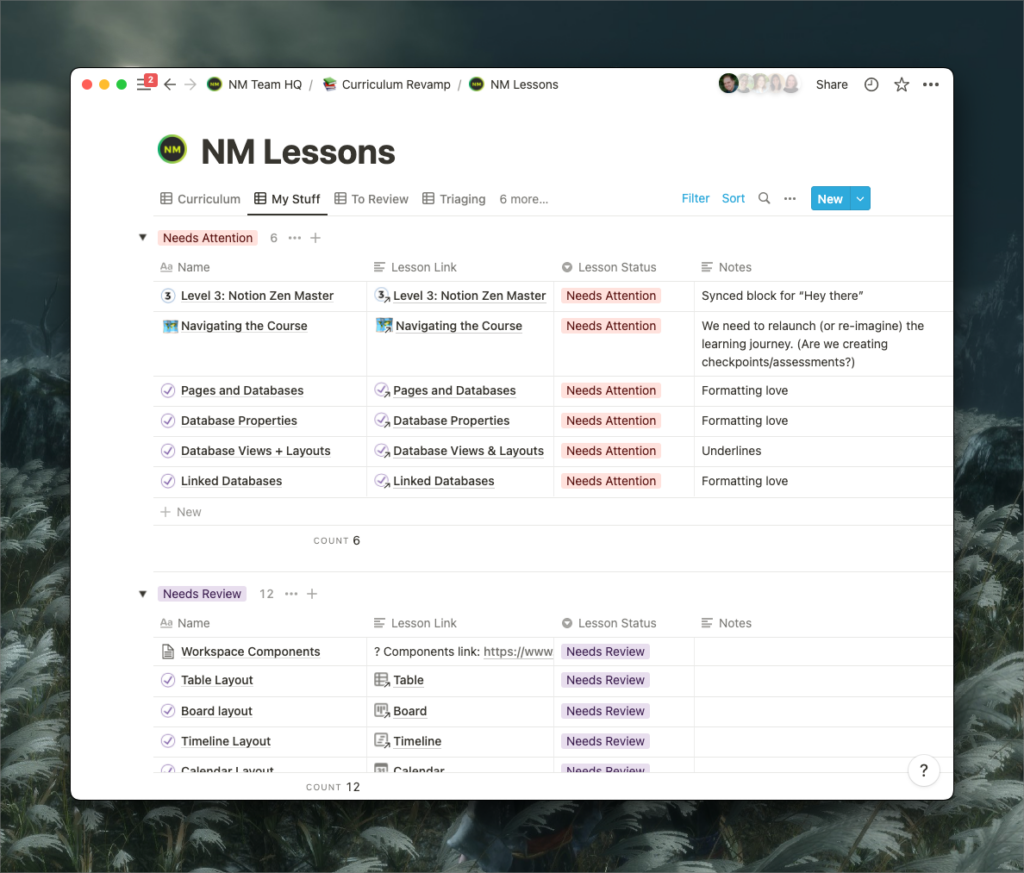
“My Stuff” view filter to show my work and grouped by status